No products in the cart.

What Is Find My iPhone and How to Use It
People ask me this a lot at the shop in Cheltenham. Someone walks in, phone’s gone, and the first thing I ask is whether Find My iPhone was turned on. More often than not, it wasn’t. And that’s where the problems start.
Find My iPhone is Apple’s built-in tracking feature that’s been part of every iPhone since 2010. It’s free, it runs through your iCloud account, and it can put your phone on a map within seconds. When it’s set up properly, you can ring the phone remotely, lock it, or wipe everything on it from any device in the world. When it’s not set up, your options shrink fast.
So here’s everything you need to know about Find My iPhone: what it is, how to turn it on, how to use it from any device, and what actually happens when your phone is switched off or out of battery.
What Is Find My iPhone and How Does It Work?
Find My iPhone works by tying your device to your Apple ID through iCloud. Your iPhone quietly sends location data to Apple’s servers whenever it’s connected to the internet. You then access that location either through the Find My app on another Apple device or by logging into iCloud.com from any browser. That’s the basic idea.
Apple launched it in 2010, and it’s come a long way since. Back then, it was just for iPhones. Now it covers iPads, Macs, Apple Watches, AirPods, and third-party accessories using AirTags. In iOS 13, Apple pulled everything together into one Find My app. So Find My iPhone, Find My iPad, Find My Mac. All in one place now.
The real power behind Find My iPhone is something called the Find My network. It’s a crowd-sourced system made up of hundreds of millions of Apple devices. If your iPhone goes offline, nearby Apple devices can pick up its Bluetooth signal and relay the location back to your iCloud account. Nobody else sees your data. Apple encrypts the whole thing end-to-end.

iCloud Find My iPhone: The Technology Behind It
Find My iPhone pulls from three different sources depending on what’s available at the time:
| Technology | When It’s Used |
| GPS | Works best outdoors; most accurate option |
| Wi-Fi | Useful indoors; uses nearby network signals |
| Bluetooth (Find My Network) | Used when the phone is offline or switched off |
The big jump came with iPhone 11. Apple added a low-power Bluetooth chip that continues transmitting even after the phone is switched off or the battery’s completely gone. Nearby Apple devices pick up this signal and pass the location update to your iCloud. Apple calls it “Findable After Power Off”. It’s why newer iPhones are still trackable in situations where older models would go completely dark.
How to Enable Find My iPhone in Settings
I’ll be straight with you. This is the part that actually matters.
Find My iPhone has to be turned on before your phone goes missing. You can’t enable it remotely after the fact. The moment a phone is lost or stolen without this active, your tracking options basically disappear. So if you haven’t done this yet, stop and do it right now before you carry on reading.
Where Do I Find Find My iPhone in Settings?
It’s not sitting at the top level of Settings, which is why people miss it. You’ve got to go through your Apple ID profile. Here are the steps:
- Open Settings on your iPhone.
- Tap your name right at the top.
- Tap Find My.
- Tap Find My iPhone.
- Toggle on Find My iPhone.
- Toggle on Find My Network.
- Toggle on Send Last Location.
Three toggles. All green. That’s it.

While you’re in there, check that Location Services is on too. Go to Settings > Privacy & Security > Location Services and make sure it’s active. Without that, Find My iPhone won’t have an accurate position to work from.
“Send Last Location” is the toggle most people leave off. What it does is automatically send your phone’s position to Apple the moment the battery hits critically low levels. So even if the device dies before you ever open the app, you still get one last location ping. That one feature has helped a lot of people.
Want to check everything’s working? Hold the side button and volume down until the power-off slider comes up. Underneath it, look for the line that says “iPhone Findable After Power Off.” If it’s there, Find My iPhone is fully active.
How to Use Find My iPhone from Another iPhone, Computer, or Android
Once Find My iPhone is running on your lost device, you can track it from pretty much anywhere. You don’t need another Apple product to do it.
If there’s another iPhone or iPad nearby, open the Find My app and go to the Devices tab at the bottom. Your missing phone should show up in the list. Tap it, and the map shows where it is right now. You then get three options:
- Play Sound rings the phone at full volume even when it’s on silent. Good for when it’s slipped between the sofa cushions.
- Mark as Lost locks the device, puts your contact number on the screen, and keeps location tracking going.
- Erase This Device permanently wipes everything. Use this only when you’re certain it’s been stolen and recovery isn’t happening.
Find My iPhone from a Computer (iCloud Login)
No Apple device around? Doesn’t matter. Go to iCloud.com/find in any browser, sign in with your Apple ID, and your devices show up on the map. Click your iPhone, and the same options are all there. Works on Chrome, Firefox, Edge, Safari. Works on a Windows laptop, a library computer, and a borrowed phone. The iCloud Find My iPhone site adapts to whatever screen you’re on.
How to Find My iPhone from Android
There’s no Find My iPhone app on Android. But you can still use it from an Android phone by opening Chrome, going to iCloud.com, and signing in with your Apple ID. The browser version does everything the computer version does. It’s not quite as slick, but it gets the job done when you don’t have an Apple device nearby.
Worth knowing: if you had Google Maps installed on your iPhone with location history switched on, check your Google Maps Timeline on any device. It won’t give you live tracking, but it shows recent places your phone visited before it went dark. Handy if Find My iPhone’s last known data is coming up empty.
| Access Method | Device | What You Need |
| Find My App | iPhone, iPad, Mac | Nothing extra |
| iCloud.com | Any device, including Android | Browser |
| Google Maps Timeline | Any device | Google account |
How to Find a Lost iPhone That Is Turned Off
Right. This is the big one.
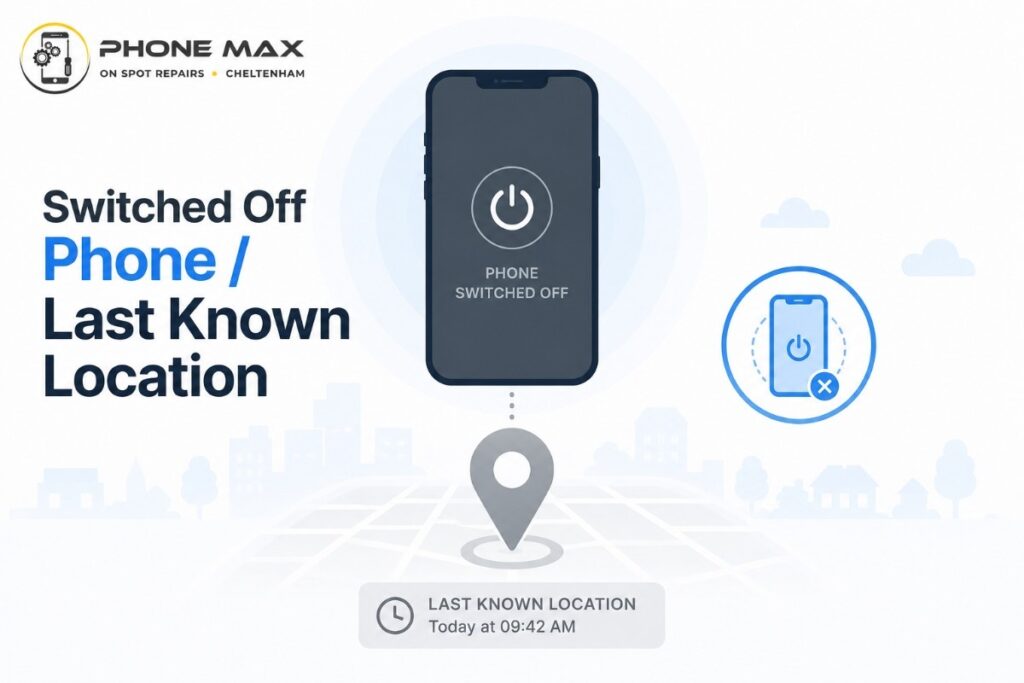
At Phone Max in Cheltenham, this is the question we get most often. The phone’s switched off, or it’s out of battery, and people want to know if Find My iPhone still works. The answer isn’t simple. It depends on your model.
iPhone 11 or later: Good news. These models have a low-power chip that keeps Bluetooth running after the phone shuts down or the battery drains completely. Nearby Apple devices can detect the signal and update the location in Find My iPhone. So even with the phone off, you’ve still got a chance.
iPhone X or earlier: Once the phone goes offline, Find My iPhone stops updating the location. You’re left with whatever the Last Known Location was showing. Still useful. But it won’t change until the device comes back online.
Find My iPhone Last Location Explained
When your phone drops off the network, Find My iPhone shows the last position it connected from. That might be five minutes ago. Might be a couple of hours. Either way, it’s a starting point.
And it’s often a good one. If the map’s showing a spot on the High Street in Cheltenham, you start there, you look around, and you work outward. A lot of phones come back this way.
There’s also a “Notify When Found” toggle inside the Find My iPhone settings. Turn it on, and Apple sends a push notification the second the phone comes back online. Someone charges it, connects it to Wi-Fi, whatever. You’ll know immediately.
Real-life incident: One of our Cheltenham customers lost her iPhone near the Brewery Quarter. The battery had died. But she had “Send Last Location” active, and the map showed exactly which street the phone had lost power on. She went there, retraced her steps, and found it sitting on a bench, still there an hour later.

If your iPhone keeps dying faster than it should, that’s worth fixing before it leads to a bigger problem. Take a look at our breakdown of why your iPhone might not be charging to see what’s behind it.
How Accurate Is Find My iPhone?
Outdoors, with a strong GPS signal and decent mobile coverage, Find My iPhone is accurate to within five metres or less. That’s genuinely precise. Close enough to tell you which side of a street the phone is on.
But there are situations where accuracy drops, and it’s worth knowing them:
| Situation | What to Expect |
| Outdoors, strong signal | Within 5 metres |
| Inside a building | Around 10 to 30 metres |
| Rural or weak signal areas | Can drift to several hundred metres |
| Switched off, iPhone 11 or later | Bluetooth-assisted, approximate range |
| Switched off, iPhone X or earlier | Last known location, no live update |
“Find My can be accurate down to 20 to 25 feet if all conditions are perfect”, according to well-established members in Apple’s support community. Out in the open around Cheltenham, that’s very achievable on a newer iPhone.
Multi-floor buildings are still a gap, though. Find My iPhone can tell you which building the phone is in. But which floor? It can’t do that. GPS doesn’t pass through concrete floors.
Use the blue dot as a strong lead. If it’s pointing at a specific building or street, go there. Check the area around it. The phone’s usually within 20 to 30 metres of where the map shows.
Conclusion
Find My iPhone takes two minutes to set up and costs nothing. It’s already on your phone. You just need to switch it on.
Do it today. Enable all three toggles in Settings. Make sure Location Services is active. And turn “Send Last Location” on while you’re at it.
If you’re picking up a second-hand iPhone, this matters even more. The previous owner needs to have disabled Find My iPhone properly before the handover; otherwise, you can’t activate the device under your own account. Our guide to buying a used iPhone safely walks you through exactly what to check before any money changes hands.
Frequently Asked Questions
Is Find My iPhone Free?
Yes. Completely free. Find My iPhone is built into every iPhone and tied to your Apple ID. No subscription. Nothing to download. You just need an active Apple ID and something to track from.
How Do I Turn Off Find My iPhone?
Go to Settings, tap your name, head to Find My, then Find My iPhone, and toggle it off. Apple asks for your Apple ID password before it lets that happen. That’s a deliberate security step. It stops anyone else from disabling Find My iPhone on your device, whether that’s a thief or someone who’s just found it.
Can I Use Find My iPhone for a Friend?
Yes, easily. Your friend logs in to iCloud.com from any browser with their own Apple ID. From there, Find My iPhone works exactly the same for their account as it would for yours. There’s also a “Help a Friend” option built into the Find My app. Open it, enter their Apple ID, and you can help them track their device directly from your phone.
How Do I Add Someone to Find My iPhone?
Open Find My, go to the People tab, and tap Share My Location. Pick a contact. Choose how long to share for: one hour, until the end of the day, or indefinitely. Once it’s set, they see your live iPhone location in their own Find My app in real time.
I Lost My iPhone. What Do I Do First?
Open Find My iPhone on another device or go to iCloud.com from any browser and sign in. If the phone’s showing on the map, try playing a sound or calling it first. If it’s been stolen, activate Mark as Lost straight away. It locks the device and shows your contact details on screen. Then call your network provider, share the IMEI number, and ask them to flag the device. Report it to the police if theft’s involved. If you’re in Cheltenham and need help working through the recovery process, take a look at what we offer on our services page and get in touch with us.