
No products in the cart.
Laptop Keyboard Not Working: What to Do (Step-by-Step)
Laptop keyboard not working? Before you panic and start pricing a new laptop, check the software side first. 9/10 times, it’s a stuck driver, an accidentally enabled Sticky Keys setting, a half-installed Windows update, or crumbs wedged under a key, not a dead motherboard.
I’ve sat across the counter from hundreds of customers here on the High Street in Cheltenham with this exact complaint, and the story is almost always the same. Someone walks in convinced their laptop is finished, and 5 minutes later we’ve fixed it with a driver reinstall. So don’t jump to the worst conclusion yet.
This guide covers the whole range of the problem. A laptop keypad not working completely, a handful of stubborn keys refusing to respond, keyboard not working on laptop after an update, all of it. I’ll also tell you honestly when it actually needs a laptop keyboard replacement rather than another software tweak, and how we deal with this locally across Cheltenham, Gloucester, Tewkesbury, and Bishop’s Cleeve.
Why Is My Laptop Keyboard Not Working? (Common Causes)
Most of the time, your laptop keyboard isn’t working because of something software-related, not because the keyboard is physically broken. Going by what I see in the shop, roughly 7/10 keyboard complaints turn out to be driver or settings problems rather than actual damage.
A laptop keypad not working can have more than one thing going on underneath at once, so it’s worth separating the obvious surface symptom from what’s actually causing it.
| Cause | Typical Symptom | Fix Type |
| Outdated or corrupted driver | Keyboard of laptop not working after an update | Software |
| Sticky Keys or Filter Keys switched on | Some keys on laptop keyboard not working | Software |
| Spilled liquid or dust under the keys | Laptop keyboard not working suddenly | Hardware |
| Loose internal ribbon cable | Keyboard will not work on laptop after a drop | Hardware |
| Windows update conflict | Laptop keyboard not working Windows 10 or Windows 11 | Software |
| Worn-out key switches | Why is my laptop keyboard not typing letters on certain keys | Hardware |
Look at that table again, and you’ll notice most of the causes sit on the software side. That’s actually good news, because it means a lot of “my keyboard is not working laptop” situations can be sorted without opening the case at all.
Quick Fixes When Your Laptop Keyboard Is Not Responding
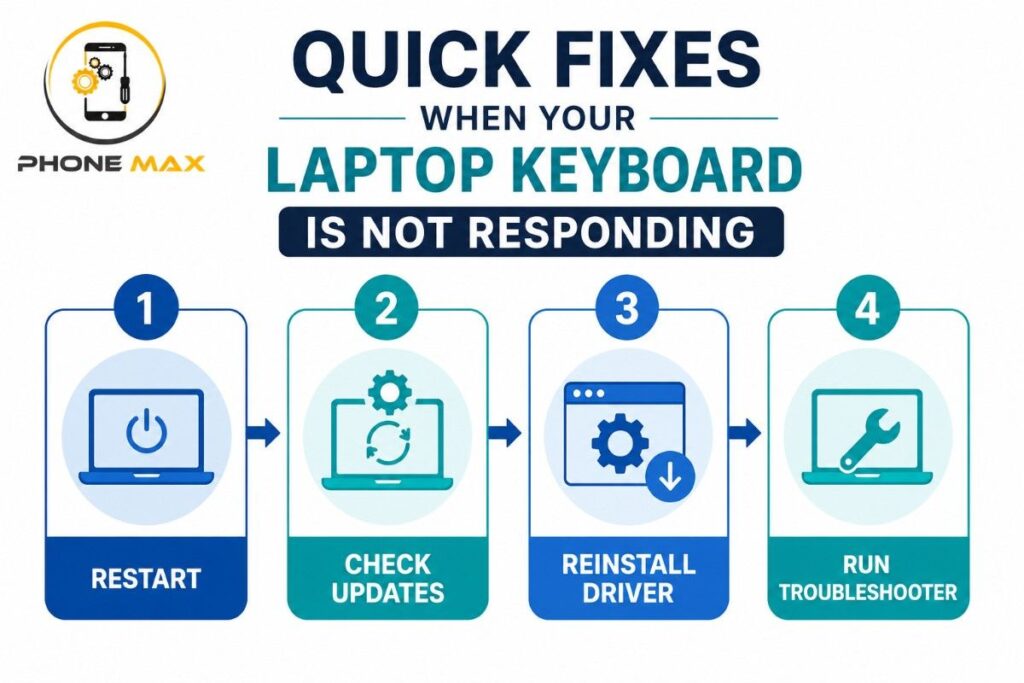
If your laptop keyboard isn’t responding, restart it properly before you touch a single setting. Not sleep mode, an actual full restart. That alone clears a surprising chunk of laptop keyboard not working suddenly cases.
If the keyboard still won’t cooperate after that, work through these in order.
- Restart fully, not sleep or hibernate
- Plug in an external keyboard and see if that works, which tells you straight away whether the fault is software or hardware
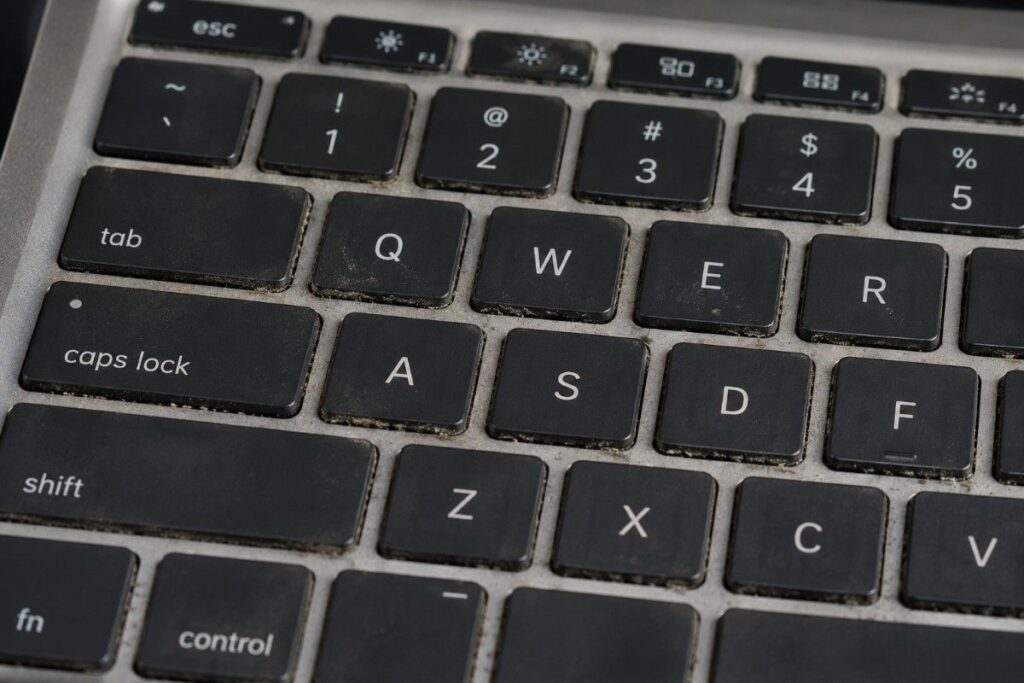
- Look for crumbs, dust, or dried liquid residue under the keys
- Check that no accessibility feature is quietly switching your keys off
How to Turn Off Sticky Keys on Your Laptop
If a key does nothing when pressed, or types the wrong character altogether, Sticky Keys or Filter Keys might be behind your laptop keyboard not working properly. This is an accessibility feature, and it changes how key presses get registered, which can make a perfectly healthy keyboard feel completely broken.
Go to Settings, then Accessibility, then Keyboard, and switch off both Sticky Keys and Filter Keys. Honestly, I’ve lost track of how many people have walked into the shop in Cheltenham certain their laptop keyboard doesn’t work, only for this one setting to be the whole problem. Microsoft has a proper walkthrough on mouse and keyboard problems in Windows if you want the official version.
Restarting and Checking for Windows Updates
A pending Windows update is one of the more common reasons a laptop keyboard suddenly stops working overnight. Head to Settings, then Windows Update, install whatever’s sitting in the queue, and restart once that’s done.
Windows occasionally pushes out a driver update that briefly clashes with keyboard firmware, and this shows up a lot on Dell, Lenovo, and HP machines in particular. Usually the next update sorts it out on its own, so check the following day again if things are still off.
Laptop Keyboard Not Working on Windows 10 or Windows 11? Fix the Drivers
When a laptop keyboard isn’t working on Windows 10 or Windows 11, the driver is usually the real culprit rather than the hardware itself. Reinstalling it forces Windows to detect the keyboard again from scratch, which clears most of these stuck states.
Update or Reinstall Your Keyboard Driver
Open Device Manager, expand Keyboards, right-click your keyboard entry, and choose Update driver. If nothing changes, right-click again and select Uninstall device, then restart so Windows reinstalls it fresh.
I’ve watched this exact step fix a laptop keyboard not working Windows 11 problem right after a feature update landed, and the same trick works for laptop keyboard not working Windows 10 machines on older builds too. If you’re on an HP laptop specifically, HP has a keyboard troubleshooting guide worth running through, and Dell owners can find similar steps on their own keyboard support page.
Run the Built-In Keyboard Troubleshooter
Windows actually has a troubleshooter built for exactly this situation. Go to Settings, then System, then Troubleshoot, then Other troubleshooters, and run the Keyboard tool from there.
It checks a few things automatically, and it often picks up on a language or layout mismatch, which can make a keyboard not working on laptop look far more serious than it really is.
Some Keys on Laptop Keyboard Not Working? Hardware Warning Signs
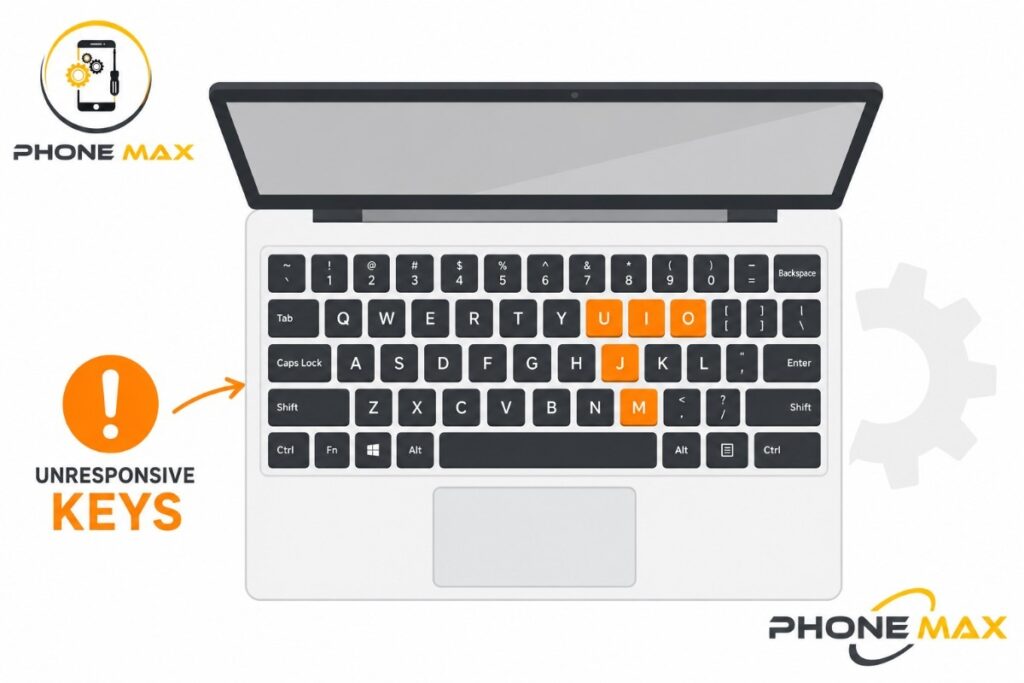
When only some keys on a laptop keyboard stop working while the rest carry on fine, that’s usually a physical issue rather than a software one. A driver problem tends to knock out the whole keyboard at once, so a few dead keys here and there usually point to debris, a worn switch, or a damaged ribbon connector underneath.
Here’s a real one from our workshop: A university student in Cheltenham brought a laptop in where only the letters near the spacebar had gone quiet, right after a coffee spill. Everything else on the keyboard still worked, which told us immediately this was liquid sitting on specific switches rather than anything software-related. We cleaned those keys, and the laptop keyboard was back to normal by the end of the day.
Signs You Need a Laptop Keyboard Replacement
A laptop keyboard replacement becomes the right call when keys feel physically loose, stop registering even after a clean, or the whole keyboard flexes and clicks unevenly under normal typing. These are mechanical faults, and no software fix touches them.
Watch out for these signs specifically:
- Keys that stick down or feel spongy next to the rest
- Laptop keyboard not working suddenly right after a knock or drop
- Visible corrosion or discolouration on individual keys after a spill
- The same row failing again and again despite reinstalling drivers
If two or more of these sound familiar, a laptop keyboard replacement is the more sensible route rather than looping through software fixes that were never going to work.
Local Laptop Keyboard Repair in Cheltenham
If you’ve gone through everything above and your laptop keyboard is still not working, it’s worth getting it looked at properly rather than guessing any further. We repair laptop keyboards for customers across Cheltenham, Gloucester, Tewkesbury, Bishop’s Cleeve, and Cirencester, and most replacements are done the same day depending on the model.
Something I tell every customer on the High Street: stop forcing a stuck key. That pressure is usually what turns a simple clean into a full laptop keyboard replacement. We’ve also had cases where a customer’s laptop wouldn’t turn on at all alongside keyboard trouble, and you can read more on that in our guide on why a laptop won’t turn on, since the two issues sometimes trace back to the same cause.

Customers who’ve brought laptops in for keyboard issues have mentioned how quickly things get turned around and how clearly we explain what actually went wrong, which is exactly what we aim for on every laptop keyboard not working job that comes through the door. We also run a pick and drop service for anyone across Gloucestershire who can’t make it to the High Street during opening hours.
Not sure if your problem is software or hardware? Our services page lists everything we cover, or just get in touch and describe what’s happening.
Conclusion
If you’ve worked through every step here and your laptop keyboard is still not working, don’t keep pushing through it. Come and see us in Cheltenham and we’ll tell you straight whether it’s a 5-minute software fix or a genuine laptop keyboard replacement, no guesswork involved. You can also request a quote beforehand if you’d like an idea of turnaround before dropping the laptop off.
Frequently Asked Questions
Why is my laptop keyboard not typing letters?
Usually a language or layout setting has changed on you, or specific key switches have simply worn out. Check the keyboard layout in Settings first, then try an external keyboard to work out whether it’s software or hardware.
Why does my laptop keyboard stop working after a Windows update?
Windows updates sometimes install a driver that briefly clashes with the keyboard firmware. Restarting once or twice after the update finishes usually clears it within a day.
Can a laptop keyboard be repaired without replacing the whole thing?
Often, yes. If it’s just a few keys or a ribbon connector at fault, we can usually repair that specific part rather than swapping the entire keyboard assembly.
Is it safe to keep using a laptop if some keys aren’t working?
Short term, yes, but pressing hard on unresponsive keys again and again can damage the switches further or push debris deeper underneath. Better to get it checked sooner rather than later.
How long does a laptop keyboard replacement take?
Most replacements at our Cheltenham shop are done the same day, though it does depend on parts availability for your specific model.