
No products in the cart.
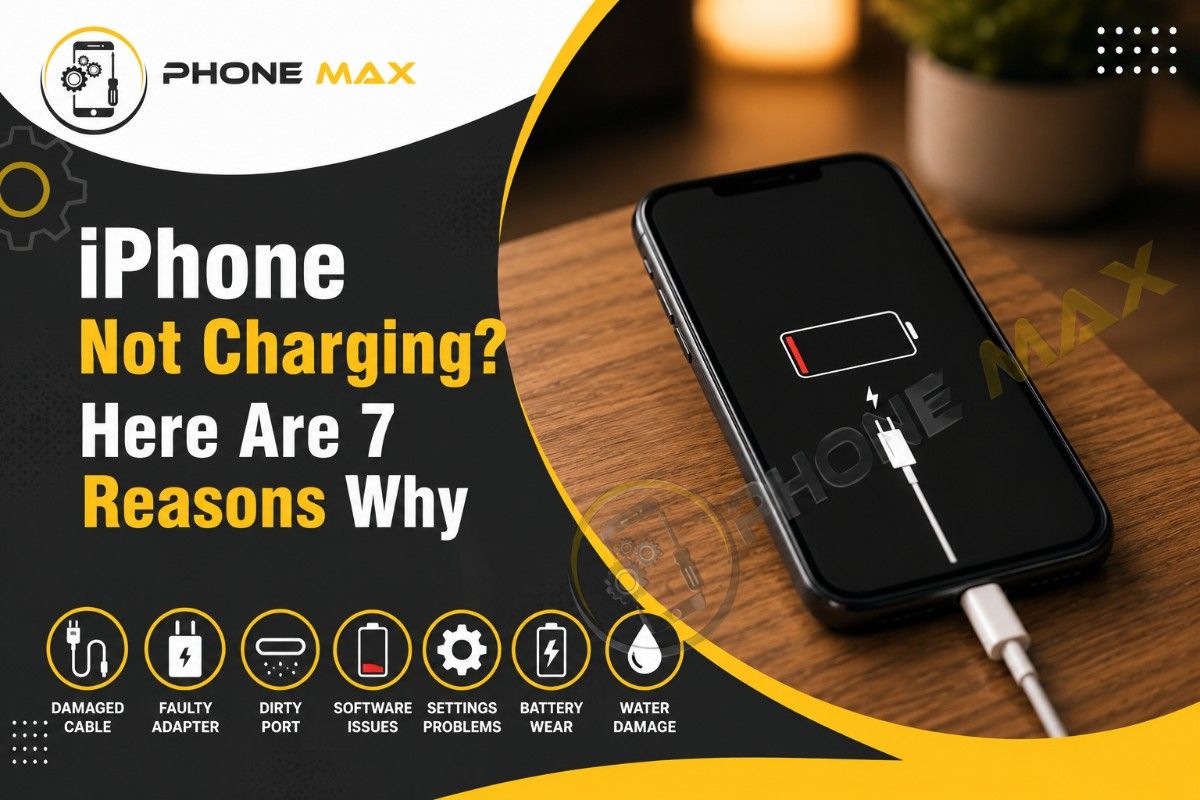
iPhone Not Charging? Here Are 7 Reasons Why
So your iPhone is plugged in, and it is just there, but doing nothing.
No charging symbol. The battery is going nowhere. You have tried wiggling the cable. You have tried a different socket. Still nothing.
Here is the thing. Most people immediately assume something is seriously wrong. Broken battery, dead port, expensive repair. Nine times out of ten, that is not the case at all.
I have seen this happen with brand-new iPhones and five-year-old ones. The causes are almost always the same. And most of them you can sort yourself in about two minutes.
Let me walk you through every reason this happens and what to actually do about it.
Why Is My iPhone Not Charging When Plugged In
Before anything else, here is a quick reference table. It gives you the most likely cause based on what you are actually seeing:
| What You See | Most Likely Cause |
| No symbol at all, phone dead | Deep-discharged battery or faulty cable |
| Shows charging, but battery stuck at 80% | Optimised Battery Charging is on |
| Charges sometimes, not always | Dirty port or loose cable connection |
| “Liquid Detected” message on screen | Water in the charging port |
| Charges slowly or barely at all | Non-certified cable or weak power source |
| Cable falls out on its own | Physical port damage |
| Worked after restart, stopped again | Software glitch |
Right. Now let us get into each one properly.
1. Dirty Charging Port Is Blocking the Connection
iPhone Not Charging With Cable? Check the Port First
This is the number one cause. Honestly. A pocket full of fluff, a bag lining, trouser fabric. Every time you slide your iPhone into a pocket, tiny fibres work their way into the port. Over weeks and months, that builds up into a compressed layer right at the back.
When you plug your cable in, it looks connected. But the lint is sitting between the pins and the cable head. There is no proper contact.
The fix takes literally two minutes.
Turn the phone off first. Then shine a torch into the port and look at the back wall. If it looks grey and fluffy, that is your problem right there.
What to use:
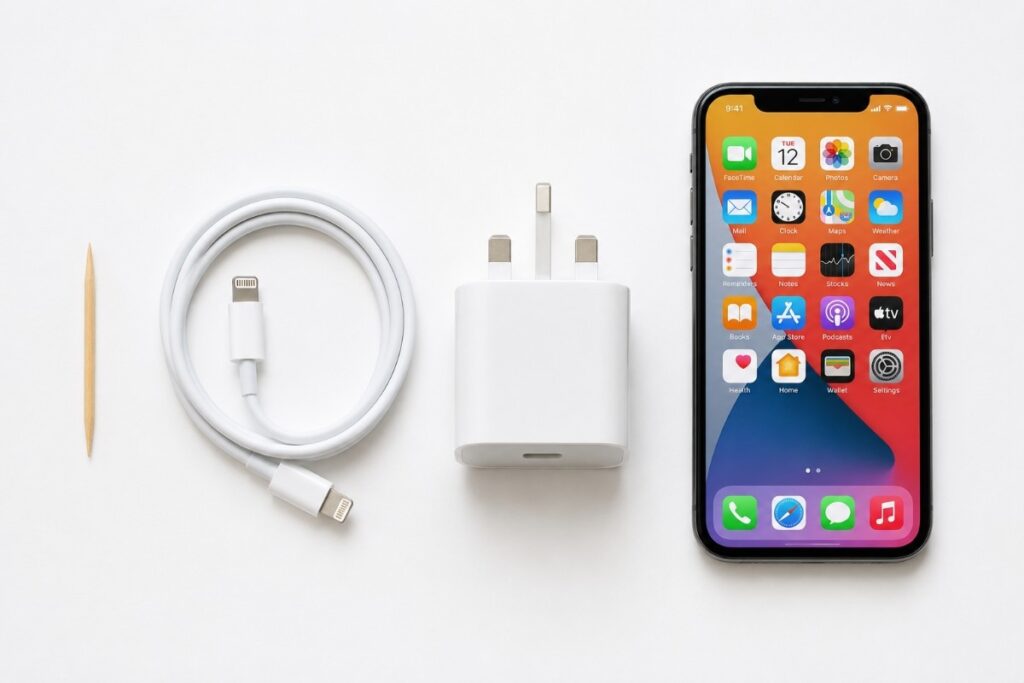
- A dry wooden toothpick
- A soft-bristled toothbrush
- A torch so you can actually see what you are doing
Scrape gently along the sides and lift the debris out. Work slowly. The pins inside are fragile, so do not go stabbing around in there. A few careful passes and you will be surprised how much comes out.
Never use metal. No pins, no SIM ejectors, no paperclips. One slip and you will damage the contacts. Then you have got a real problem.
After cleaning, plug your cable back in. If it suddenly sits firmer in the port than it did before, the lint was the issue.
2. Your Cable or Adapter Has Given Up
iPhone Not Charging Properly? The Cable Is Usually to Blame
Cables take a beating. Bent at sharp angles, yanked out, wrapped around things, stepped on. The internal wiring breaks long before the outside shows any damage.
Apple uses the MFi (Made for iPhone) certification to verify that cables are safe and compatible. Cheap third-party cables skip this process. Some of them charge a fine for a while, then become unreliable. Others trigger the “This accessory may not be supported” message. A few just do not work at all.
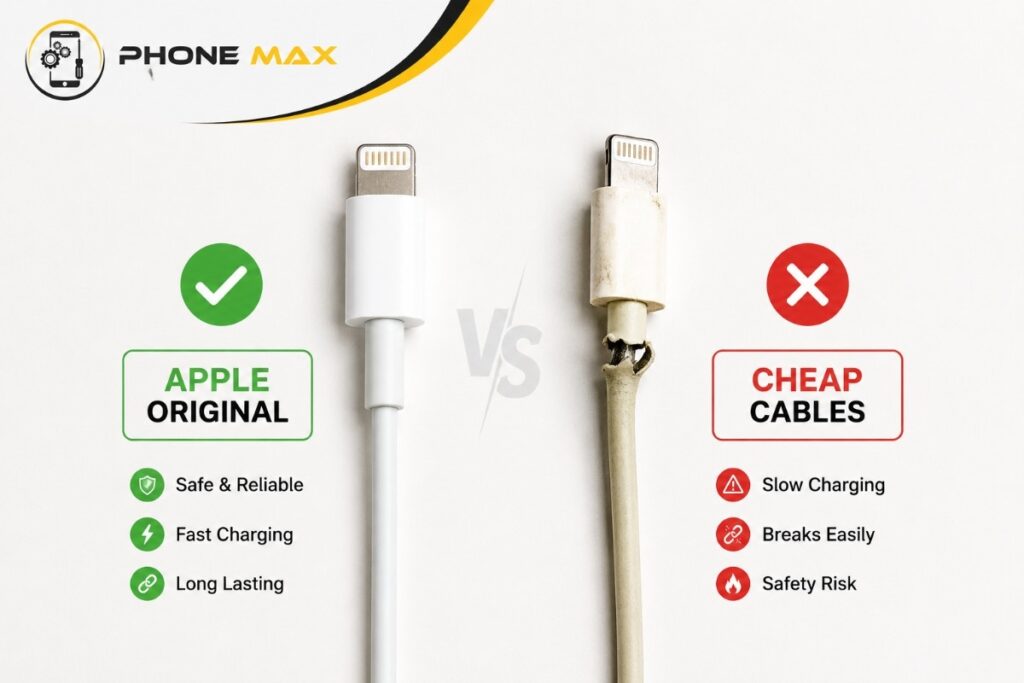
Swap the cable first, even if yours looks fine on the outside.
Then test the adapter. Wall adapters can fail too, especially cheap ones. iPhones need a minimum of 1A to charge properly. Some USB ports on old laptops barely push out enough current to make a dent.
Try plugging into a wall socket rather than a computer. Try a friend’s cable. If it charges immediately with a different setup, your original cable or adapter is the problem and not the phone. For the original iPhone cable and adapter in Cheltenham, visit Phone Max
3. Optimised Battery Charging Is Capping Your iPhone at 80%
Why Is My iPhone Not Charging Even Though It Says It Is
This one causes a lot of panic. The lightning bolt is showing. The cable is in. But the battery percentage has been stuck at 80% for hours.
Nothing is wrong with your iPhone.
Important: Apple added Optimised Battery Charging in iOS 13. The feature is on by default, and it is designed to slow down battery ageing. Lithium-ion batteries degrade faster when they spend long periods at 100%. So your iPhone learns when you typically charge, usually overnight, and it holds at 80% until just before you need it.
You will see a small note on your lock screen that says “Optimised Battery Charging. Scheduled to finish charging by [time].”
That is normal. Your phone is working exactly as it should.
To override it:
iPhone 15 and newer: Settings > Battery > Charging > slide the Charge Limit to 100%, or tap “Charge to 100% Now”
iPhone 14 and older: Settings > Battery > Battery Health & Charging > toggle off Optimised Battery Charging
If you want it charged to full every time without thinking about it, just turn the feature off. It will not immediately damage your battery. Just do not leave it at 100% all day every day for years on end.
4. A Software Bug Is Stopping Your iPhone From Recognising the Charger
Phone Charging and Not Charging Intermittently
Sometimes the problem is nothing to do with the cable, the port, or the hardware. iOS develops bugs. Now and then, a system glitch causes the phone to not register that it is even plugged in. The screen stays off. No charging symbol. Nothing.
A force restart clears this in most cases. It takes 10 seconds, and your data stays completely intact.
How to force restart:
| iPhone Model | Method |
| iPhone 8, X, 11, 12, 13, 14, 15, 16 | Press Volume Up, press Volume Down, hold the Side button until the Apple logo appears |
| iPhone 7 / 7 Plus | Hold Volume Down and Side button together |
| iPhone 6s and earlier | Hold Home and Side button together |
After the restart, plug your charger in again. If it starts charging straight away, software was the issue.
While you are at it, check for iOS updates. Go to Settings > General > Software Update. Apple regularly patches charging-related bugs in point releases. If you are running an older version, update it.
5. Water Got Into the Port and Blocked Wired Charging
iPhone Not Charging After Water? Here Is the Right Way to Handle It
All modern iPhones from the iPhone 7 onwards have some level of water resistance. But water resistance is rated under lab conditions. Rain, a splash in the sink, sweaty hands in summer, sitting on a damp surface. Real-world exposure is different.
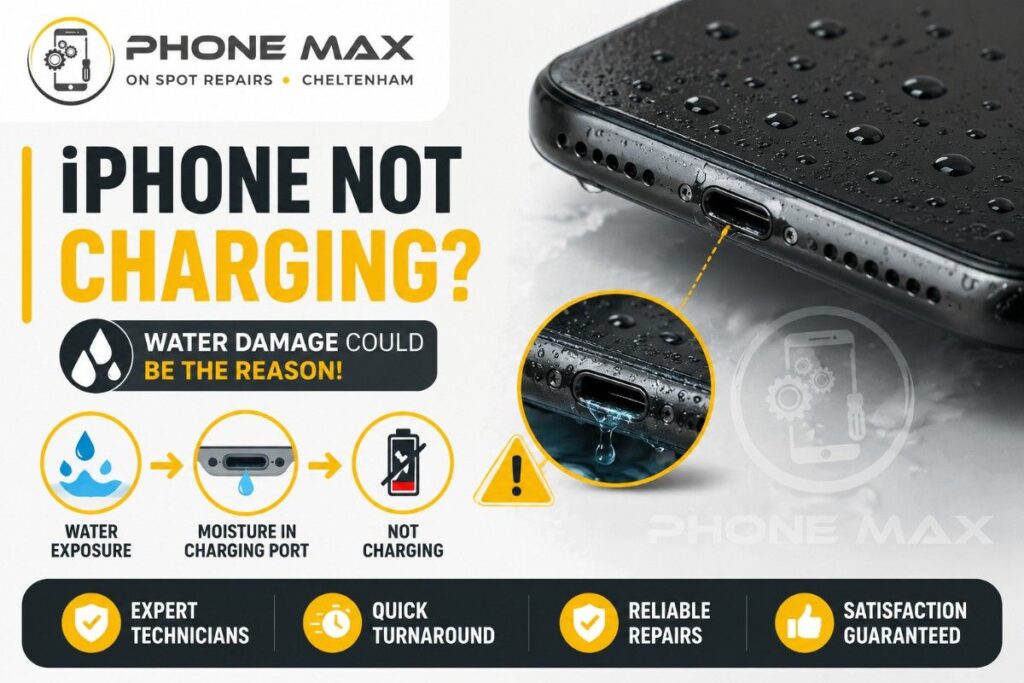
When your iPhone detects moisture in the port, it locks wired charging. You will see a notification on screen: “Liquid Detected in Lightning Connector” or USB-C depending on your model. This is not a fault. The phone is protecting itself from a short circuit.
What to do:
Do not charge it. Not yet.
Hold the phone with the port pointing down and tap it gently against your palm. Let any liquid drain out naturally.
Put it somewhere cool and dry. A windowsill with airflow is fine. Leave it for at least 24 hours.
Do not use a hairdryer. The heat damages internal components. Do not put it in rice either. Rice does not actually pull moisture from inside a port, and small grains can get stuck inside and make things worse.
Once it has dried out, try wired charging again. If wired still does not work, but wireless charging does, the port has taken damage and needs looking at. PhoneMax in Cheltenham handles water damage assessments and port repairs, usually on the same day.
6. The Battery Is Completely Dead and Needs Time to Recover
iPhone Dead and Not Charging? Give It 20 Minutes Before Assuming Anything
A fully drained lithium-ion battery cannot immediately power the screen. When the battery hits absolute zero, there is not enough charge to even show the charging symbol. You plug it in and get nothing back. Black screen. No response. It looks completely dead.
It is not. It just needs time.
Leave it plugged into a wall adapter, not a laptop USB port, for at least 20 to 30 minutes. Do not keep unplugging it to check. That actually slows the recovery process down. Just leave it alone.
After that time, the screen will come back on, showing the charging screen or the Apple logo. From there it charges normally.
If after 45 minutes with a known good cable and a wall adapter, there is still zero response at all, then there is likely a battery fault involved and the phone needs a diagnostic check.
7. The Charging Port Itself Is Physically Damaged
Charging Port Not Working on iPhone? Signs You Need a Repair
If you have been through everything above and nothing has worked, there is a good chance the port itself is damaged. This happens most with older phones, phones that have been dropped, or phones that have had cheap cables forced in at awkward angles repeatedly.
Signs the port needs professional attention:
- The cable sits loose and falls out on its own
- Charging only works if you hold the cable at a very specific angle
- Visible corrosion, burn marks or bent pins inside the port
- The phone charges fine wirelessly but not via cable
- The port feels gritty or rough when you plug in
Do not try to fix this yourself. Replacing a charging port on an iPhone requires specialist tools and genuine parts. A bad DIY job can damage the logic board, and that turns a £60 repair into a £300 problem very quickly.
For anyone in Cheltenham, PhoneMax offers iPhone battery and port repairs with genuine parts. They also do free collection and same-day service across Cheltenham and surrounding areas.
Quick Troubleshooting Checklist Before Booking a Repair
Work through this in order before doing anything else:
- Clean the charging port with a dry wooden toothpick
- Try a different Apple MFi-certified cable
- Try a different wall adapter and a different socket
- Force restart the phone (instructions above)
- Check Settings > Battery > Battery Health for Optimised Battery Charging
- Go to Settings > General > Software Update and install anything pending
- If the phone got wet, leave it 24 hours before charging
- If the battery is dead flat, leave it on a wall charger for 30 minutes without unplugging
- If wireless charging works but wired does not, the port needs replacing
- If none of the above works, book a diagnostic
Conclusion
An iPhone not charging is almost always fixable. In most cases, it comes down to one of three things: a blocked port, a bad cable, or a software quirk. Start with the simplest checks first. Clean the port, swap the cable, do a force restart. That alone fixes the majority of cases.
If you have been through everything and the phone still will not charge, it is time to get it looked at properly. Continuing to force charge a phone with a damaged port or degraded battery can cause further damage over time.
For fast, honest iPhone repairs in Cheltenham, contact PhoneMax.
Frequently Asked Questions
Why Is My iPhone Not Charging Past 80%
That is Apple’s Optimised Battery Charging doing its job. Go to Settings > Battery > Battery Health & Charging and turn it off, or press “Charge to 100% Now” for a one-off override.
How Do I Clean My iPhone Charging Port Safely
Turn the phone off. Use a dry wooden toothpick to gently scrape along the inside edges of the port and lift out any lint. Follow with a soft dry brush. Never use anything metal. Never use moisture of any kind.
My iPhone Is Dead and Not Charging at all
Plug it into a wall adapter using a known good cable and leave it for 30 minutes without touching it. A fully drained battery takes time to recover before showing any response.
iPhone Not Charging After Getting Wet
Do not plug it in. Let it air dry for at least 24 hours in a cool spot with the port facing down. Try wireless charging while you wait. If wired charging still does not work after it has fully dried, the port needs a professional inspection.
Is a Loose Charging Port Worth Fixing, or Should I Get a New Phone
Almost always worth fixing. A port replacement is a straightforward repair and costs a fraction of a new handset. Apple itself will replace a battery for free if health drops below 80% under warranty. Outside of warranty, local repair shops in Cheltenham like PhoneMax offer fast turnarounds at reasonable prices.




Leave a reply