
No products in the cart.
Laptop Won’t Turn On | Is It the Battery, Charger, or Motherboard?
Laptop won’t turn on? Just a dead screen, no fan, nothing?
If that is what you are looking at right now, stop panicking. Because in most cases, a laptop that won’t turn on is not the disaster it looks like.
At Phone Max in Cheltenham, I see this often. People come in expecting the worst and walk out having sorted it themselves once they knew where to look. Battery, charger, or a simple reset. Those three cover the vast majority of cases that come through the door.
Here is where to start.
What the Laptop Is Telling You When It Won’t Turn On
The moment you press the power button tells you almost everything. Not five minutes later. Right then.
Watch closely.
No Lights, No Fan, Nothing At All
A zero response means no power is getting through.
No charging indicator, no fan attempting to spin, no warmth from the base. When there is literally nothing happening, the problem is almost always power. Battery completely flat, charger not working, or the charging port has a fault. A failed motherboard gives the same nothing, but that is much less common than people assume when they are standing there in a panic.
Start with the power source. Every time.
Power Light On But Screen Stays Black
This one trips people up.
They think the laptop won’t turn on. Actually, it is on. Power is reaching it. Something else is causing the black screen, usually a display fault, a RAM issue, or the system crashing mid-load. Before assuming anything serious, grab an HDMI cable and connect the laptop to a TV or external monitor. Output on that screen? Your laptop is working. The internal display has failed.
That is a much smaller problem.
Laptop Won’t Turn On? Start Here
Find your situation in this table before doing anything else.
| What You Are Seeing | Where to Start |
| No response, no lights whatsoever | Battery, charger, wall socket |
| Power light on, screen completely black | External monitor test, RAM check |
| Turns on, then immediately dies | Overheating or battery fault |
| Stuck on the brand logo, nothing loads | Hard drive or Windows |
| Not responding after a Windows update | Boot loop, corrupted update |
| Plugged in but not charging at all | Port damage or broken cable |
Match your situation. That is your starting point.
Laptop Turned Off Suddenly and Won’t Come Back On
A laptop that cut out without warning and will not restart sits in one of a few categories.
The battery is finished
Batteries do not always die gradually. Sometimes a laptop that was fine yesterday simply will not hold a charge today. The tell is a laptop that runs on mains power but cuts off the second you unplug it. That battery is done.
The charger is not actually delivering power
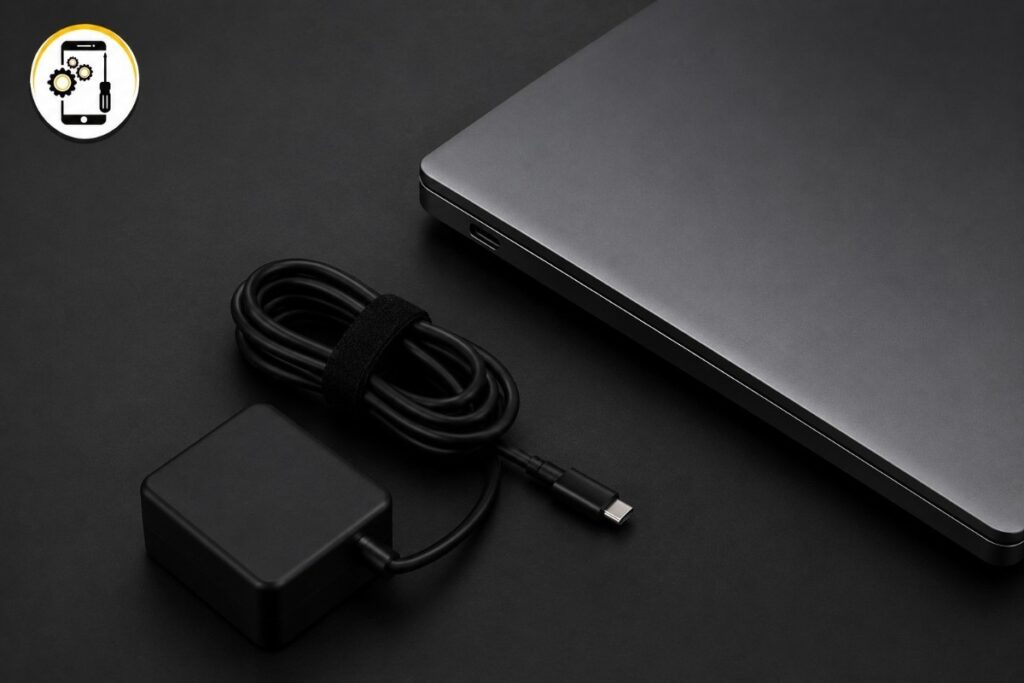
Damaged cable, bent connector pin, or a USB-C phone charger being used where the full laptop charger should be. Any of these can stop a laptop from powering up, even if a charging light appears. That light only confirms electricity is present. Not that it is the right amount for the laptop to boot.
Overheating triggered a hard shutdown
Laptops protect themselves by cutting power when temperatures inside climb too high. Dust in the cooling vents is the most common cause by a long way.
Real-life example: A Lenovo IdeaPad came into the shop last year; a student brought it in from the centre of Cheltenham. It had shut down mid-assignment and would not start. The cooling vent was completely blocked. Clean-out, hard reset, back on within the hour. No parts, no cost.
A Windows crash or failed update
Annoying because it is not a hardware problem at all. A crashed update or a freeze during sleep mode can leave a laptop appearing dead when the machine itself is completely fine.
An HP laptop came in not long ago after a Windows 11 update. Looked totally dead. System recovery from USB had it running in under 30 minutes.
Something has actually broken inside
RAM, hard drive, motherboard. These do fail. But genuinely less often than the causes above, which is usually the opposite of what people expect.
How to Fix a Laptop That Won’t Turn On
Hard Reset First, Everything Else Second
This fixes more dead laptops than it reasonably should. And costs nothing to try.
Residual electrical charge can get trapped in the system components after a crash or sudden shutdown. That trapped charge stops the laptop from starting even when nothing is actually broken. A hard reset clears it.
Steps:
- Unplug the charger from both the laptop and the wall.
- Remove the battery if your model allows it.
- Hold the power button down for a full 30 seconds.
- Put the battery back in. Reconnect the charger.
- Press power.
Try that before anything else. It works more than it should.

Still not starting? Move on.
Test the Charger and Battery One at a Time
Not both together. Testing both simultaneously means you will not know which one is the actual fault.
Charger: Check the cable for fraying or kinks. Look at the connector for bent pins. Try a completely different wall socket rather than the same extension lead. If a compatible spare charger is within reach, use it and see what changes.
Battery: Removable battery? Take it out and try starting on the charger alone. Starts without the battery fitted? The battery is the problem. For laptops with built-in batteries, the signs are a charge percentage stuck at 0% when plugged in, or the laptop dying the instant you disconnect power.
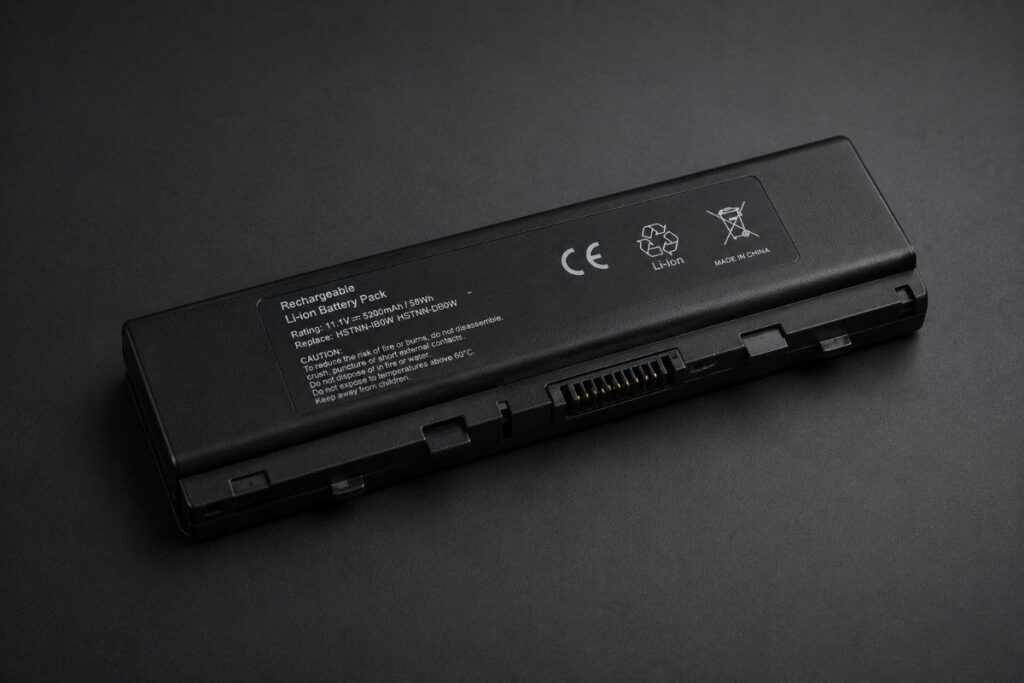
If this keeps happening with your devices, this guide on signs your battery needs replacing covers what to watch for before it reaches this stage.
When to Stop and Bring It to a Repair Shop in Cheltenham
Some problems are not fixable at home. If the hard reset did nothing, the charger appears fine, and the battery is not obviously dead, the fault is hardware.
Bring it in when any of these apply:
- The charging port wobbles or moves when you plug in
- There is a burning smell when you try to power on
- It took a knock, got wet, or was dropped before it stopped working
- It died during a firmware or BIOS update
- It beeps when you press power, but nothing appears
At Phone Max in Cheltenham, we diagnose and repair most makes and models. Battery replacements, port repairs, hardware diagnostics- all covered. Full details on the services page, or request a quote online if you want an idea before coming in.
Worth reading before choosing anywhere in Cheltenham: the guide on finding the best phone and laptop repair shop in Cheltenham covers exactly what to look for.
Conclusion
Most laptops that won’t turn on are not broken. They are stuck.
Hard reset first. Then the charger. Then the battery. Those three steps resolve the majority of cases. If you have worked through all of it and the laptop still will not turn on, stop guessing and bring it in.
The Phone Max team in Cheltenham can diagnose it properly and tell you exactly what needs to be done.
More detailed technical reading on this topic from Laptop Outlet UK , Box.co.uk, and LaptopReno.
Frequently Asked Questions
Why won’t my laptop turn on even though it has been on charge?
Check the charging indicator on the laptop itself. Not the charger. The laptop. If that light is not on, power is not actually reaching the battery, regardless of what the charger looks like. Try a different charger with the correct wattage for your model. No change? The port or battery needs proper assessment. A laptop appearing to charge and actually charging are not always the same.
Why is my laptop not starting after I press the power button?
Dead battery, faulty charger, or the system has frozen and cannot complete startup. Do the hard reset. Unplug everything, remove the battery if possible, hold the power button for 30 seconds, reconnect everything, and try again. Still nothing after that? Hardware is the likely cause.
My laptop turned off by itself and won’t turn on now. What should I do?
Give it 15 minutes to cool down first. Overheating is a common cause of sudden shutdowns, and the laptop sometimes just needs to settle. Then try the hard reset. Check the charger. If it still will not start, stop troubleshooting and have it looked at. A laptop that switches off suddenly and refuses to restart can occasionally mean something has failed internally.
Power light is on, but the screen is black. What does that mean?
Power is reaching the laptop. The black screen is a separate issue. Most often, a display fault, RAM problem, or stuck boot process. Plug in an external monitor via HDMI. Image on that screen means the internal display has failed and the laptop itself is working normally. No image? The issue is deeper in the startup process.
Why won’t my MacBook turn on?
Apple Silicon models: hold the power button for 10 seconds to force a full shutdown, then restart. Older Intel models: reset the SMC first. Neither works? Hardware fault. Needs someone with Apple-specific knowledge. Do not attempt to open a MacBook without the right tools and experience.