
No products in the cart.
Fix Face ID Not Working on iPhone | Causes, Solutions & Repair
9/10 times, Face ID not working comes down to something small. A blocked sensor. A stuck update. A screen protector sitting a millimetre too thick over the camera notch. The 10th time, it’s genuinely a hardware fault, and no amount of resetting will bring it back.
I’ve lost count of how many phones land on my bench here in Phone Max Cheltenham with the owner already bracing for bad news. “It’s probably the whole camera module, isn’t it?” Usually not. Last month a woman came in convinced her iPhone 13 needed a full logic board replacement because Face ID died right after an iOS update. Turned out to be a £4 screen protector she’d bought off Amazon. Two minutes, no charge, sorted.
So before you panic or book anything, work through this properly. I’ll walk you through what actually causes it, what fixes it, and how to tell the difference between a five-minute software fix and a genuine repair.
Why Is My Face ID Not Working All of a Sudden?
If Face ID stopped working overnight, without you dropping the phone or getting the phone wet, the cause is almost always software. Apple’s TrueDepth system leans on background processes that occasionally get stuck, especially straight after an update or a low-battery shutdown.
A few things I check first, in this order:
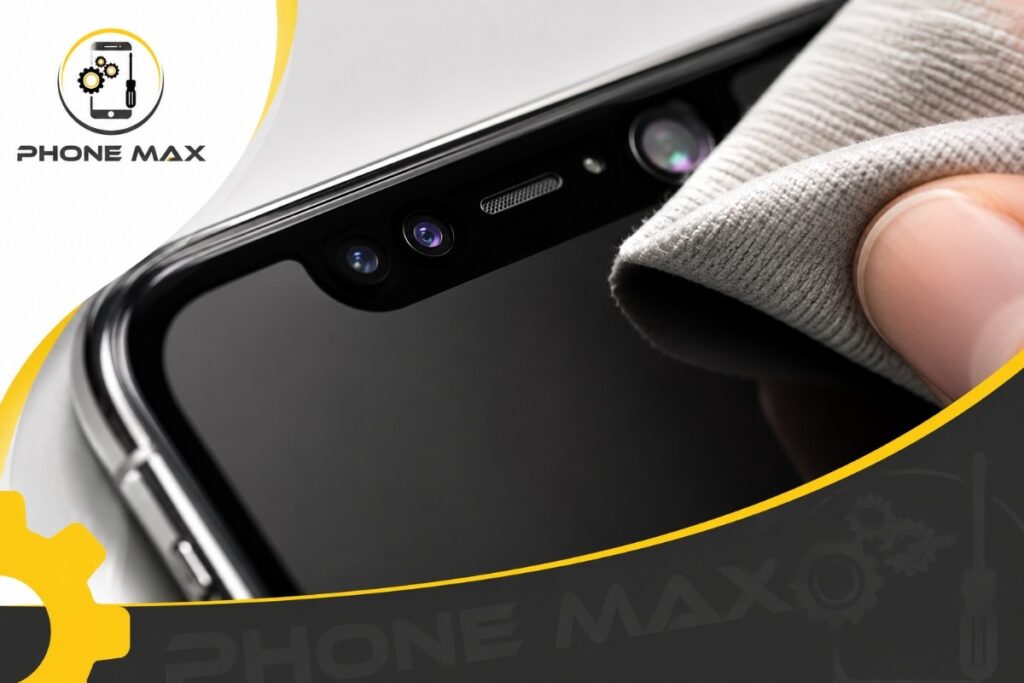
Is the TrueDepth camera actually clean? Not “looks clean.” Genuinely clean. Pocket lint and finger grease sit right over the infrared dot projector without you noticing, and that alone blocks enough of the scan to fail.
Did you install a screen protector recently? Cheap ones, particularly the full-coverage tempered glass kind, sometimes sit fractionally proud around the sensor cutout. That’s enough to interfere.
Have Screen Time restrictions been switched on? This one catches people out constantly, because Face ID just quietly stops working with no obvious error message pointing to the cause.
Was there a recent iOS update? Check Apple’s own Face ID troubleshooting page for known issues tied to your specific iOS version, since they do occasionally patch bugs within days of release.
Start with a full restart. Hold the side button and a volume button until the slider appears, power off, count to thirty, then switch back on and enter your passcode before testing again. It sounds too simple to matter. It fixes more cases than anything else on this list.
“Face ID Is Not Available At This Time” — What This Actually Means
This message is different from Face ID just failing to recognise you. It means the system has locked itself out, usually after five failed scans in a row, after a factory reset, or because a background diagnostic flagged a fault with the sensor itself.
Restarting and resetting Face ID through Settings clears this in most cases. If the message keeps coming back no matter what you try, that’s usually your sign the TrueDepth module needs a proper look, not another reset.
How To Fix Face ID Not Working On iPhone: Step-By-Step
Work through these in order. Skipping ahead just means redoing steps later.
| Step | What To Do | What It Fixes |
| 1 | Full restart, not just locking the screen | Stuck background processes |
| 2 | Settings > General > Software Update | Known iOS bugs |
| 3 | Clean the notch with a dry microfibre cloth | Blocked sensor |
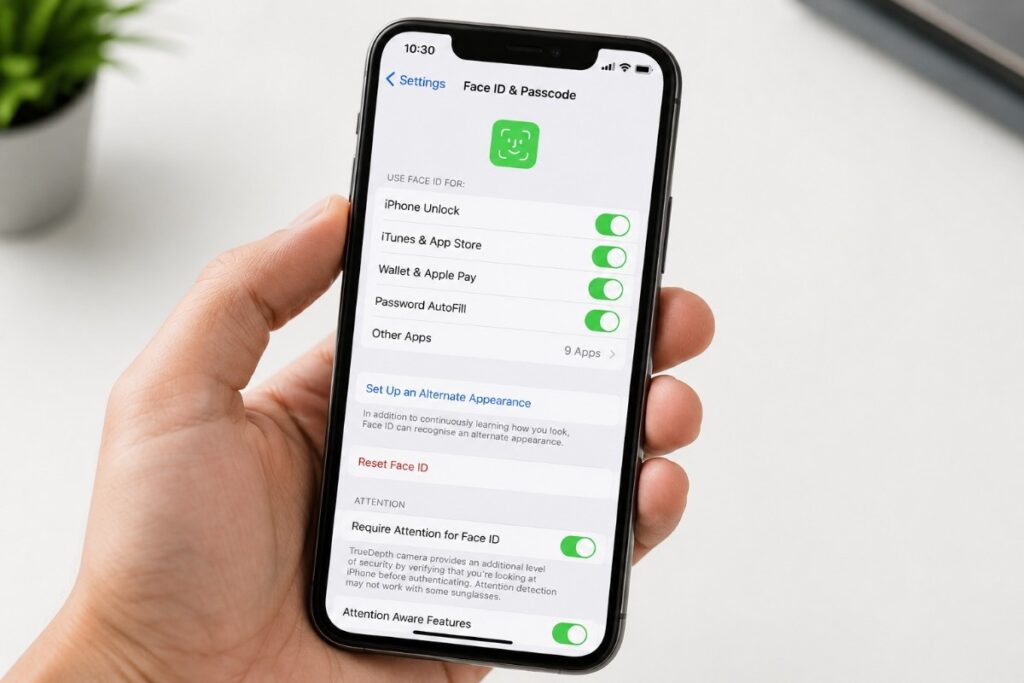
| 4 | Settings > Face ID & Passcode, check it’s toggled on | Disabled permissions |
| 5 | Reset Face ID, then set it up fresh | Corrupted face data |
| 6 | Screen Time > Content & Privacy Restrictions | Hidden software block |
| 7 | Book a hardware diagnostic | Physical sensor fault |
Reaching step seven doesn’t mean disaster. It means the problem’s below the software layer, and that’s exactly the point where a technician with the right tools should take over rather than you guessing further.
Face ID Not Working On iPhone 11: What’s Different
The iPhone11 uses an earlier version of the TrueDepth camera, and by now most of these phones are five or six years old. Dust builds up around the earpiece grille over that time in a way you won’t notice day to day. A proper clean of that area, done carefully, restores full function in a lot of these older units without touching the module itself.
Face ID Not Working On iPhone 13 After iOS Update
This is one I see repeatedly. Face ID breaks the same week a major iOS update ships, then Apple quietly patches it a week or two later. If yours died right after updating, check for a newer version before assuming the worst. Reset Face ID properly rather than just restarting, and give it a day or two if you can.
Face ID Not Working On iPhone 15: New Causes To Check
Less software-related than older models, since Apple’s refined the hardware since. When it does fail on a 15, it’s almost always a case with a misaligned cutout or, again, that screen protector sitting too close. Worth ruling both out before booking anything.
Face ID Not Working After iOS Update
This deserves its own section because it’s genuinely one of the most reported issues on Apple’s own community forums, and it follows a pretty predictable pattern. Nothing’s physically wrong. The handshake between iOS and the secure enclave just briefly breaks.
What actually helps:
- Check you’re on the latest available iOS version first. Apple often ships a fix within a week or two of the original bug appearing.
- Reset Face ID completely rather than restarting alone, since a restart won’t touch corrupted face data sitting in the enclave.
- Try switching off “Require Attention for Face ID” temporarily under Settings, then test again before turning it back on.
If nothing’s shifted, back up your device and run a full Reset All Settings. This won’t touch your photos or apps, just corrupted preference files, and it clears a surprising number of stubborn cases.
Honestly, I tell most customers to give it 24 to 48 hours after a big update before coming in. Apple frequently resolves these server-side or through a fast follow-up patch, and there’s no point paying for a repair on something that fixes itself by Thursday.
Face ID Not Working After Screen Repair or Water Damage
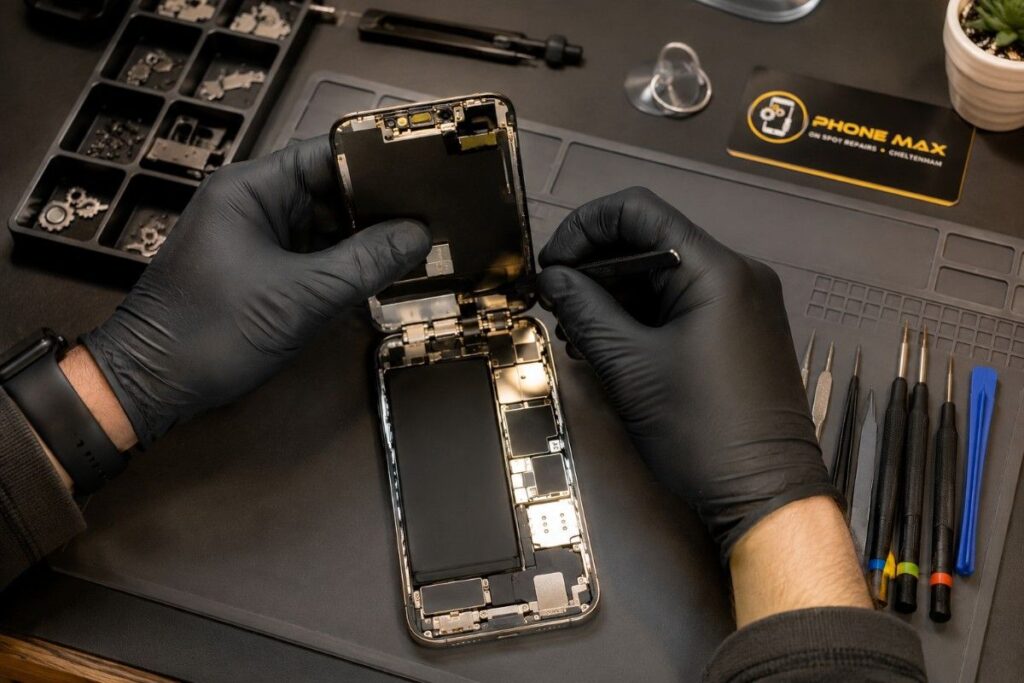
If Face ID died right after a screen swap, the TrueDepth cable is the first suspect, not the whole board. That cable sits directly behind the earpiece assembly, and if it isn’t reseated properly during the repair, Face ID either stops entirely or works intermittently.
This is genuinely one of the most common reasons people end up in our shop after getting a cheap repair somewhere else. If you’ve had a water-damaged phone looked at recently, or a screen replaced anywhere that isn’t a specialist, and Face ID hasn’t worked properly since, that cable connection is where I’d look first.
When You Need Professional Face ID Repair In Cheltenham
Once you’ve genuinely worked through the software steps above and Face ID still isn’t playing ball, that’s hardware. No further resetting is going to change that, and honestly, repeated resets can make it harder for a technician to diagnose cleanly afterwards.
We deal with Face ID and TrueDepth faults regularly, and see phones from right across Cheltenham plus Bishop’s Cleeve, Prestbury, Charlton Kings, and further out toward Gloucester and Tewkesbury. Most hardware repairs of this kind are same-day if we’ve got the part in, and we run a full diagnostic first, so you know exactly what’s wrong before agreeing to anything.
Full details of what we cover are on our repair services page, and you can read a bit more about how we work on our about us page. If a phone was repaired elsewhere first and Face ID broke afterwards, we’ll also give you a second opinion before you spend anything further.
What customers have said after getting this sorted
“Booked in for a cracked screen and mentioned Face ID had stopped working too. They spotted the actual cause straight away and explained it before touching anything.”
“Proper diagnostic, none of the guesswork I got the first time round elsewhere.”
Can’t get into the shop easily? Our collection and delivery service covers Cheltenham and the surrounding towns, so you’re not losing half a day just to drop a phone off.
Conclusion
Face ID not working feels worse than it usually is. 9/10 times it’s a restart, an update, or a proper reset away from working again, and it’s always worth ruling those out first. When it does turn out to be hardware, whether that’s a drop, a bad screen swap somewhere else, or water getting in, a proper diagnostic means you know exactly what you’re paying for before you commit to anything.
If you’re in Cheltenham and you’ve genuinely tried everything above with no luck, get in touch through our contact page or request a quick repair quote, and we’ll tell you straight what’s wrong.
Frequently Asked Questions
Why is my Face ID not working all of a sudden?
Almost always software. A recent update, a blocked camera, or an active Content and Privacy Restriction are the usual suspects. Restart first, then reset Face ID if that doesn’t shift it.
Face ID not working, move iPhone lower — what does that mean?
The TrueDepth camera couldn’t get a full read within range. Hold the phone ten to twenty inches away, make sure your eyes, nose, and mouth are fully visible, and try again in decent lighting.
How do I reset Face ID that’s not working?
Settings, then Face ID & Passcode, enter your passcode, tap Reset Face ID, then Set Up Face ID and rescan. Do it somewhere with even, natural light for the cleanest result.
Why does it say Face ID is not available at this time?
The system’s locked itself after repeated failed scans or a background fault check. Restart and reset first. If it keeps happening, the module likely needs a hardware look.
Does Face ID failing mean I need a whole new phone?
No, and this is worth knowing before you panic. It’s almost always just the TrueDepth module or its cable, not the entire device. A proper diagnostic tells you exactly what’s failed before any work starts, so you’re never paying to guess.